View Security Information in Vendor Portal
The Security Center is Beta. The features and functionality described on this page are subject to change.
In the Vendor Portal, the Security Center provides dashboards for monitoring vulnerabilities across your releases and assessing the impact of CVEs across your customer fleet. You can also view security information for a specific release or customer instance.
To open the Security Center, go to [App name] > Security. The Customer Impact dashboard opens by default. Use the section switch to select Release Security or return to Customer Impact.
Customer Impact dashboard
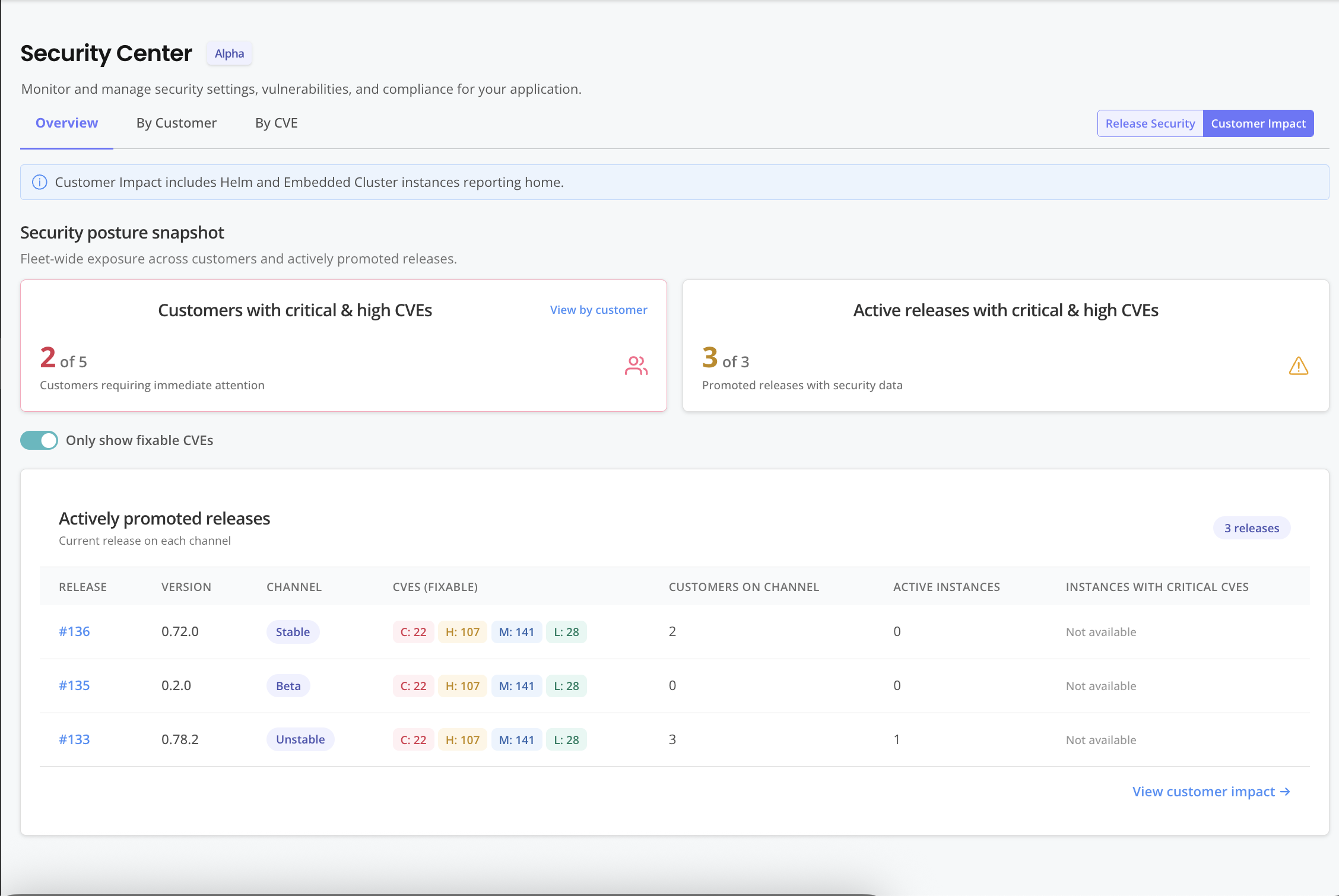
The Customer Impact dashboard shows fleet-wide CVE exposure for Helm and Embedded Cluster instances that report data to the Vendor Portal.
The following shows an example of the Customer Impact dashboard:
View a larger version of this image
Review the customer impact overview
The Overview tab includes:
- A security posture snapshot that compares the number of customers with Critical or High CVEs to the total number of customers.
- The number of actively promoted releases with Critical or High CVEs, compared to the number of promoted releases with security data.
- The Actively promoted releases table, which lists the current release on each active channel. For each release, the table shows the version, channel, CVE counts by severity, number of customers on the channel, number of active instances, and number of instances with Critical CVEs.
By default, Only show fixable CVEs is enabled, and the dashboard counts only CVEs that have a known fix. Turn off Only show fixable CVEs to include CVEs without a known fix.
View impact by customer
On the By Customer tab, you can:
- Search for a customer.
- Filter customers by one or more CVE severity levels.
- Sort the results by Critical CVEs, total CVEs, customer name, or number of instances.
- Turn off Only show fixable CVEs to include CVEs without a known fix.
Each customer row shows its number of instances, aggregate CVE counts, and best available upgrade. Each aggregate severity count is the highest value reported by a single instance, rather than a sum.
The best available upgrade is the customer instance upgrade with the greatest net CVE reduction, prioritizing higher-severity CVEs. The recommendation displays the target release and keeps CVEs resolved by the upgrade separate from CVEs introduced by the upgrade. If no complete or security-improving recommendation is available, the row displays an unavailable state.
Expand a customer row to view the status, installation type, channel, application version, last check-in, and SDK-reported CVE counts for each instance. Each instance includes an upgrade recommendation when a newer compatible release and complete scan data are available. Otherwise, Security Center explains why it cannot provide a recommendation.
An air gap instance might not have SDK-reported CVE data. In this case, Security Center displays the CVE counts for the latest release on the instance's channel as a reference. These counts represent the release and not the instance's reported security posture.
View impact by CVE
On the By CVE tab, you can:
- Search by CVE ID.
- Filter CVEs by severity.
- Turn off Only show fixable CVEs to include CVEs without a known fix.
Each CVE row shows its description and the number of affected releases and customers. Expand a CVE to view the affected releases. Expand a release to view affected customers and the status of each customer instance.
If one or more image scans are unavailable, Security Center displays a warning that CVE and customer impact data might be incomplete.
Release security dashboard
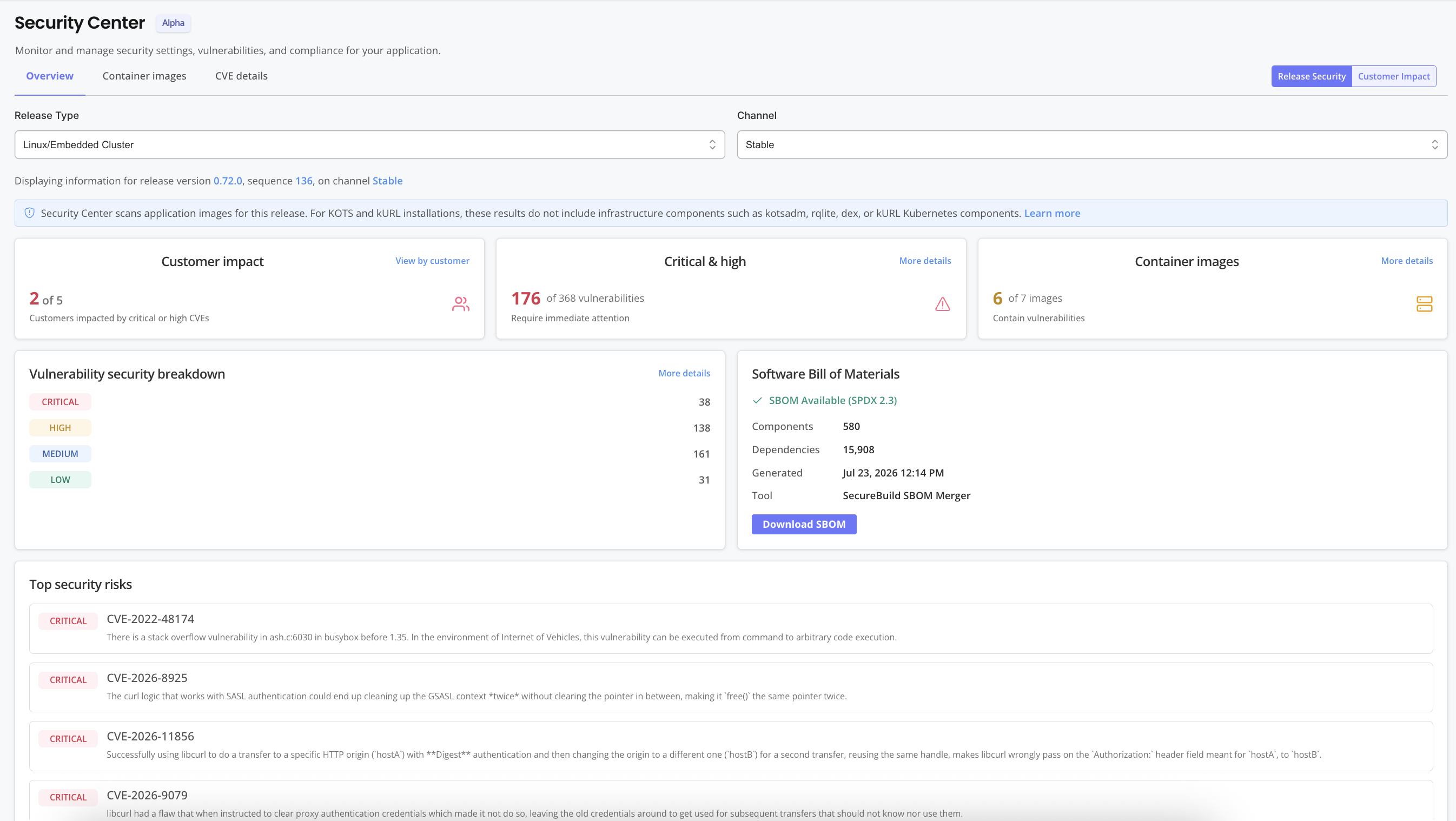
Select Release Security to view security information for the release selected by installation type and channel.
The following shows an example of the Release Security dashboard:
View a larger version of this image
You can filter the Release Security dashboard by release type (Linux/Embedded Cluster or Helm) and release channel.
The Release Security dashboard includes the following:
- The number of customers affected by Critical or High CVEs, with a link to view the impact by customer
- An overview of vulnerabilities present in the release, including a breakdown of CVE severity (Critical, High, Medium, Low) and a detailed list of the top security risks
- The software bill of materials (SBOM) for the release, with a Download SBOM option
- On the Container images tab, a complete image inventory with scan status and vulnerability counts per image
- On the CVE details tab, for each CVE identified:
- The CVE identifier and description
- The highest severity rating across affected images
- A list of images affected by the CVE
Software bill of materials (SBOM)
The Release Security dashboard displays the software bill of materials (SBOM) for the release in view. The SBOM includes the format, the number of components and dependencies, the generation date, and the tool used. Select Download SBOM to download the SBOM as a JSON file.
Filter container images by source or scan status
On the Container images tab, you can filter the image inventory. Each filter displays the number of matching images:
- All Images: All images in the release.
- Application Images: Scanned images that belong to your application.
- Replicated Platform Images: Scanned Replicated-owned images, such as the Replicated SDK and Embedded Cluster or KOTS components.
- Incomplete scans: Images whose initial scan is queued, in progress, failed, or could not start because the image was not found. Images with incomplete scans can also appear in the application or Replicated Platform image counts.
You can also select Show only vulnerable images to limit the list to images that have known vulnerabilities. The Showing X of Y images label reports the number of displayed images. Security Center disables the vulnerable-image filter when you select Incomplete scans because these images have no current vulnerability data.
When the release has incomplete scans, Security Center shows when it last checked their statuses. Scan statuses do not refresh continuously. Select Refresh statuses to retrieve the current status of each incomplete scan.
Find other releases that use a vulnerable image
On the Container images tab, each image includes a Find in other releases option that shows every other release referencing the same image. This is useful for assessing the blast radius of a vulnerability. If an image has a CVE, the panel shows which other releases, channels, and customer instances the CVE might also affect.
Select Find in other releases on an image to expand a panel listing matching releases, grouped as follows:
- Active Releases: The latest promoted release on each channel that references the image.
- All Releases: Every release that references the image, whether active or previously promoted, along with the number of active instances running each release.
A release can span more than one channel, so it can appear multiple times in the results, one row per channel.
For each matching release, the panel shows:
- The release sequence and version, linked to that release's Security tab
- The channel the release ships to
- The number of active instances running that release
- The specific image tag or reference that matched. Releases can reference the same image differently — for example, with different registry prefixes or tags
The All Releases list also shows a Total exposure count of active instances across every matching release.
Filter CVEs by severity
On the CVE details tab, you can filter the list of CVEs by severity level. Select any combination of the following to narrow the list:
- All: All CVEs in the release. This is the default. Selecting one or more individual severity levels clears it.
- Critical, High, Medium, and Low: Show only CVEs with the selected severity levels. Each option displays the number of CVEs at that level in the release.
The Showing X of Y CVEs label reflects how many CVEs match the current filter.
Security Center groups each CVE by its highest severity level across all affected images. For example, a CVE with a Critical rating in one image and a Low rating in another appears in the Critical group. This ensures that each CVE reflects its most severe rating.
Release-specific CVE information
CVE details are available for all current and previously promoted application release versions. To view CVE information for a specific release, go to Releases > [Release Version] > Security. This page shows the same container image list, image counts, filters, and SBOM as the Release Security dashboard.
Customer-specific CVE information
You can view CVE details at the customer level for active instances running the Replicated SDK version 1.9.0 or later. This gives you visibility into all container images running alongside your application, helping you identify security risks and urgent upgrade needs across your customer base.
To view CVE information for a specific customer instance, go to Customers > [Customer] > [Instance] > Security. The customer instance page provides the same image counts, source filters, incomplete-scan filter, and vulnerable-image filter as the Release Security dashboard.