Manage install types for a license
This topic describes how to manage which installation types and options are enabled for a license.
Overview
You can control which installation methods are available to each of your customers by enabling or disabling Install types fields in the customer's license.
The following shows an example of the Install types field in a license:
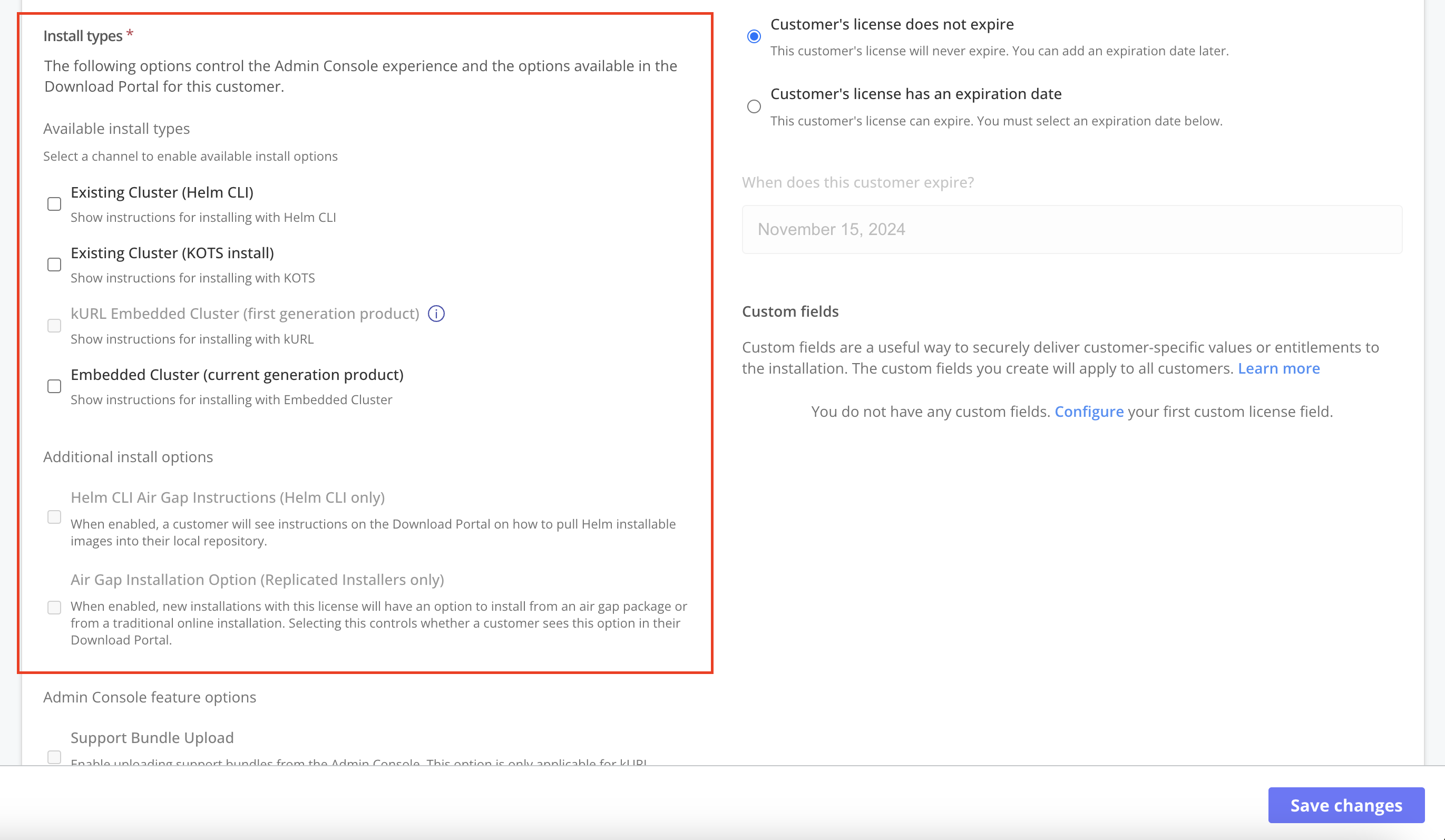
View a larger version of this image
The installation types that are enabled or disabled for a license determine the following:
- The Replicated installers (Replicated KOTS, Replicated Embedded Cluster, Replicated kURL) that the customer's license entitles them to use
- The installation assets and/or instructions provided in the Replicated Enterprise Portal for the customer
- The customer's KOTS Admin Console experience
Setting the supported installation types on a per-customer basis gives you greater control over the installation method used by each customer. It also allows you to provide a more curated Enterprise Portal experience, in that customers will only see the installation assets and instructions that are relevant to them.
Understanding install types
In the customer license, under Install types, the Available install types field allows you to enable and disable different installation methods for the customer.
You can enable one or more installation types for a license.
The following describes each installation type available, as well as the requirements for enabling each type:
| Install Type | Description | Requirements |
|---|---|---|
| Existing Cluster (Helm CLI) | Allows the customer to install with Helm in an existing cluster. The customer does not have access to the Replicated installers (Embedded Cluster, KOTS, and kURL). When the Helm CLI Air Gap Instructions (Helm CLI only) install option is also enabled, the Enterprise Portal displays instructions on how to pull Helm installable images into a local repository. See Understanding Additional Install Options below. | The latest release promoted to the channel where the customer is assigned must contain one or more Helm charts. It can also include Replicated custom resources, such as the Embedded Cluster Config custom resource, the Replicated HelmChart, Config, and Application custom resources, or the Troubleshoot Preflight and SupportBundle custom resources. Any other Kubernetes resources in the release (such as Kubernetes Deployments or Services) must include the The Example: |
| Existing Cluster (KOTS install) | Allows the customer to install with Replicated KOTS in an existing cluster. |
|
| kURL Embedded Cluster (first generation product) | Allows the customer to install with Replicated kURL on a VM or bare metal server. Note: For new installations, enable Replicated Embedded Cluster (current generation product) instead of Replicated kURL (first generation product). |
|
| Embedded Cluster (current generation product) | Allows the customer to install with Replicated Embedded Cluster on a VM or bare metal server. |
|
Understanding additional install options
After enabling installation types in the Available install types field, you can also enable the following options in the Additional install options field:
| Install Type | Description | Requirements |
|---|---|---|
| Helm CLI Air Gap Instructions (Helm CLI only) | When enabled, a customer will see instructions on the Enterprise Portal on how to pull Helm installable images into their local repository. Helm CLI Air Gap Instructions is enabled by default when you select the Existing Cluster (Helm CLI) install type. For more information see Installing with Helm in Air Gap Environments | The Existing Cluster (Helm CLI) install type must be enabled |
| Air Gap Installation Option (Replicated Installers only) | When enabled, new installations with this license have an option in their Enterprise Portal to install from an air gap package or do a traditional online installation. | At least one of the following Replicated install types must be enabled:
|
Troubleshoot "Helm CLI install unavailable"
On the customer page, the Existing Cluster (Helm CLI) install type can show a warning similar to the following:
Helm CLI install unavailable: Secret "db-credentials" in file "db-secret.yaml" is a raw Kubernetes resource without the kots.io/installer-only: "true" annotation. Add this annotation or remove the resource to enable Helm CLI installs.
The same warning appears in the linter results for the release on the Releases page.
What the warning means
The Vendor Portal checks the latest release promoted to the customer's channel. If that release includes Helm charts and also includes standalone Kubernetes manifests (manifests that are not part of a Helm chart) without the kots.io/installer-only: "true" annotation, the Vendor Portal treats the release as not available for Helm CLI installations.
For a release that is not available for Helm CLI installations:
- The Enterprise Portal does not list the release as a Helm CLI installation option.
- The Enterprise Portal does not show Helm CLI install or update instructions for the release.
The warning does not affect the Helm chart itself. Customers who already know the chart location can still install it with the Helm CLI, and the Helm CLI never deploys the standalone manifests. This is why an installation can succeed even when the warning is present.
How to resolve the warning
-
For each resource named in the warning, do one of the following:
- Add the
kots.io/installer-only: "true"annotation to the resource. Use this option if installations with KOTS, kURL, or Embedded Cluster v2 need the resource. The value must be the string"true". - Remove the resource from the release. Use this option if no install method needs it. For example, new applications include example manifests that you can delete after you add your Helm chart.
Embedded Cluster v3 never deploys standalone manifests, even when they are annotated. If Embedded Cluster v3 installations need the resource, move it into a Helm chart or a Helm extension chart. For more information, see Annotate standalone Kubernetes manifests in Conditionally include or exclude resources.
For more information, see Annotate standalone Kubernetes manifests in Conditionally include or exclude resources.
- Add the
-
Promote a new release to the customer's channel. The warning is based on the latest release on the channel, so it clears only after you promote a release that includes the fix.
About migrating existing licenses to use install types
By default, when an existing customer license is migrated to include the Install types field, the Vendor Portal automatically enables certain install types so that the customer does not experience any interruptions or errors in their deployment.
The Vendor Portal uses the following logic to enable install types for migrated licenses:
If the existing license has the KOTS Install Enabled field enabled, then the Vendor Portal enables the following install types in the migrated license by default:
- Existing Cluster (Helm CLI)
- Existing Cluster (KOTS install)
- kURL Embedded Cluster (first generation product)
- Embedded Cluster (current generation product)
Additionally, if the existing KOTS Install Enabled license also has the Airgap Download Enabled option enabled, then the Vendor Portal enables both of the air gap install options in the migrated license (Helm CLI Air Gap Instructions (Helm CLI only) and Air Gap Installation Option (Replicated Installers only)).
Otherwise, if the KOTS Install Enabled field is disabled for the existing license, then the Vendor Portal enables only the Existing Cluster (Helm CLI) install type by default. All other install types will be disabled by default.