Expose ports and access applications
This topic explains how to access applications running in Replicated Compatibility Matrix (CMX) clusters and virtual machines (VMs).
Overview
After you deploy your application into CMX clusters or VMs, you can use the following methods to get access to your application:
-
Port forwarding: For CMX clusters, you can use port forwarding to test with localhost. Supported for all Kubernetes distributions. See Configure Port Forwarding.
-
Expose ports: For VMs and VM-based clusters (K3s, Kind, RKE2, OpenShift, kURL, Embedded Cluster), you can use CMX to expose ports on the public internet. See Expose Ports.
-
LoadBalancer: For cloud-based clusters (EKS, GKE, AKS, OKE), you can use Kubernetes LoadBalancer services to expose ports on the public internet. See Create an External Load Balancer.
Configure port forwarding (clusters only)
Port forwarding works on all CMX cluster distributions and provides access to your application on localhost only, not on the public internet. This is the simplest option for testing and works well for a single service or pod without complex routing requirements.
To port forward a service in a CMX cluster:
-
Get the kubeconfig for your cluster:
replicated cluster kubeconfig CLUSTER_ID > kubeconfig.yaml -
Connect the port-forward to your service:
kubectl --kubeconfig=kubeconfig.yaml port-forward svc/my-service 8080:80For more information, see kubectl port-forward in the Kubernetes documentation.
-
Execute your tests against
localhost:8080. -
Shut down the port-forward when finished (Ctrl+C).
Expose ports (VMs and VM-based clusters only)
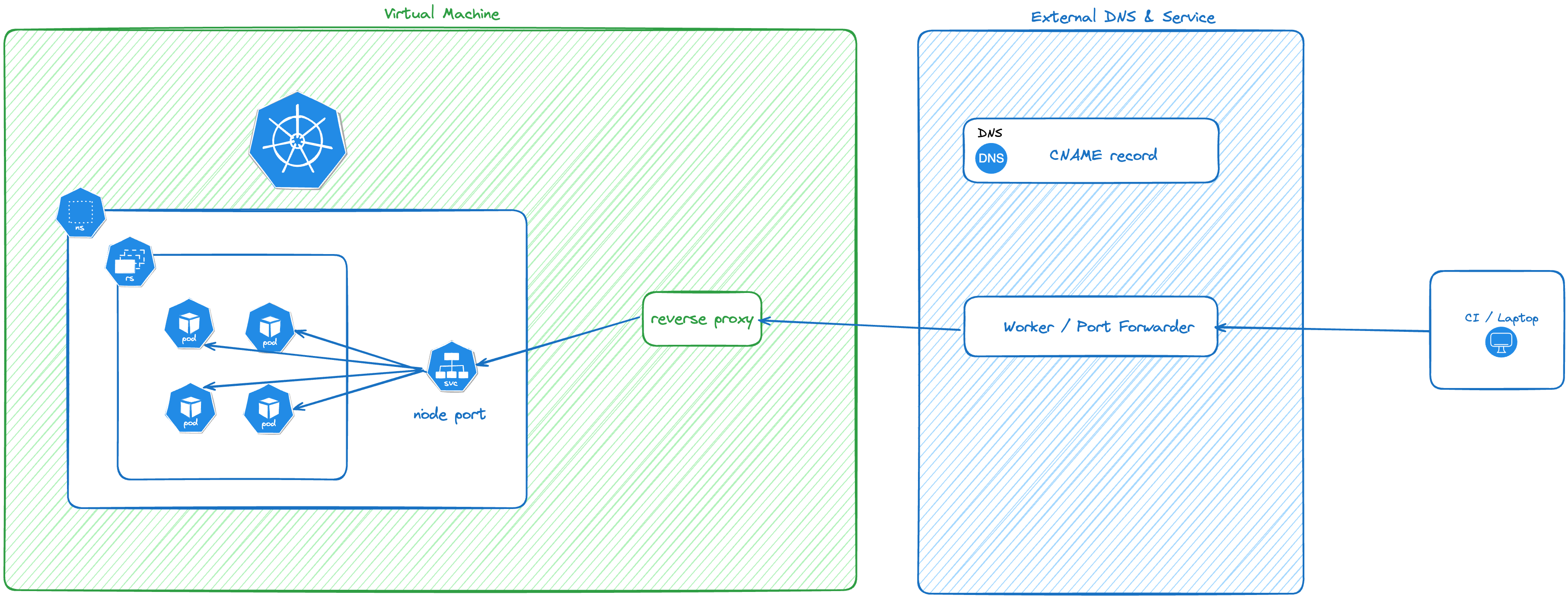
You can use CMX to get public internet access to applications running in VMs or VM-based clusters (K3s, Kind, RKE2, OpenShift, kURL, Embedded Cluster). For VMs, you can use CMX to expose ports directly on the VM. For clusters, CMX uses a Kubernetes NodePort to provide access to the cluster from the host.
When you expose a port, CMX creates a DNS record and a valid TLS cert and connects them to the port. By default, each DNS record gets a unique DNS name like boring-wozniak.ingress.replicatedcluster.com.
You can create a DNS record to expose a port before the NodePort service is created in the cluster. You can also expose a port on a VM that does not yet have a service listening on it. This is useful if you have a deterministic NodePort or if you know which port your application will use, and need the DNS name as a value in your Helm chart in order to deploy.
There is no limit to the number of DNS records you can create for an environment.
The following diagram shows how traffic is routed into the service for VM-based clusters using CMX:
View a larger version of this image
Limitations
- Each DNS record can only connect to one service. If you need fanout routing into different services, consider installing the NGINX ingress controller as a NodePort service and exposing it.
- Exposing ports is supported for VMs and VM-based clusters (K3s, Kind, RKE2, OpenShift, kURL, Embedded Cluster). CMX does not support exposing ports for clusters that use cloud distributions (EKS, GKE, AKS, OKE).
- Wildcard DNS is not supported for VMs.
Supported protocols
You can expose ports using one or more of the following supported protocols:
- HTTP
- HTTPS
- WS
- WSS
GRPC and other protocols are not routed into the environment.
Expose ports using the CLI
-
To expose a port in a cluster:
replicated cluster port expose CLUSTER_ID \--port NODE_PORT \--protocol PROTOCOLFor more information, see replicated cluster port expose.
-
To expose a port on a VM:
replicated vm port expose VM_ID \--port PORT \--protocol PROTOCOLFor more information, see replicated vm port expose.
Expose ports on a VM using the Vendor Portal
To expose ports on a VM in the Vendor Portal:
-
In the Vendor Portal, go to Compatibility Matrix.
-
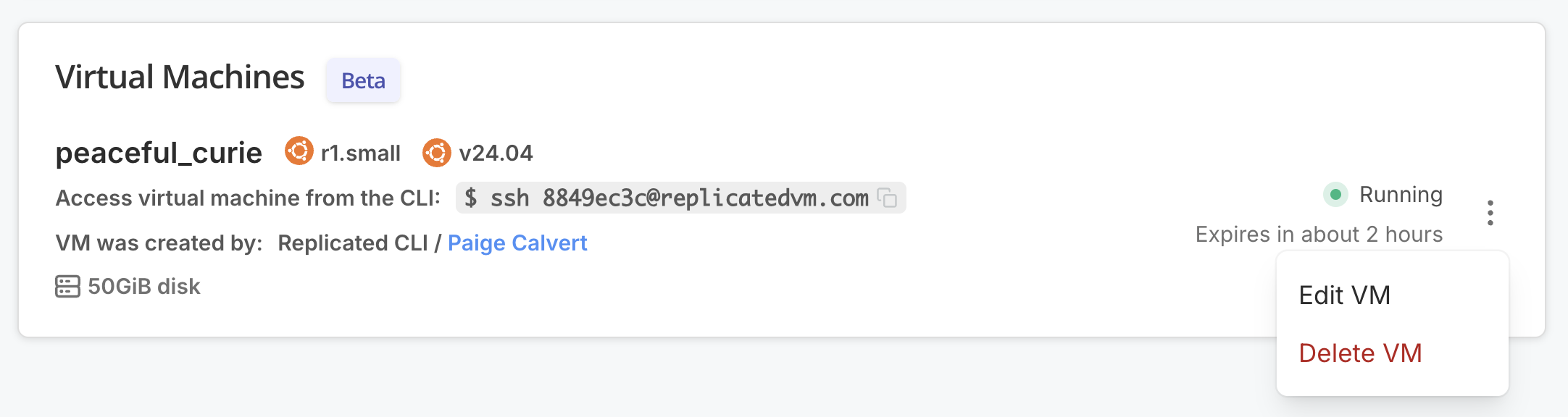
Click the VM name or select Edit VM from the VM's menu.
-
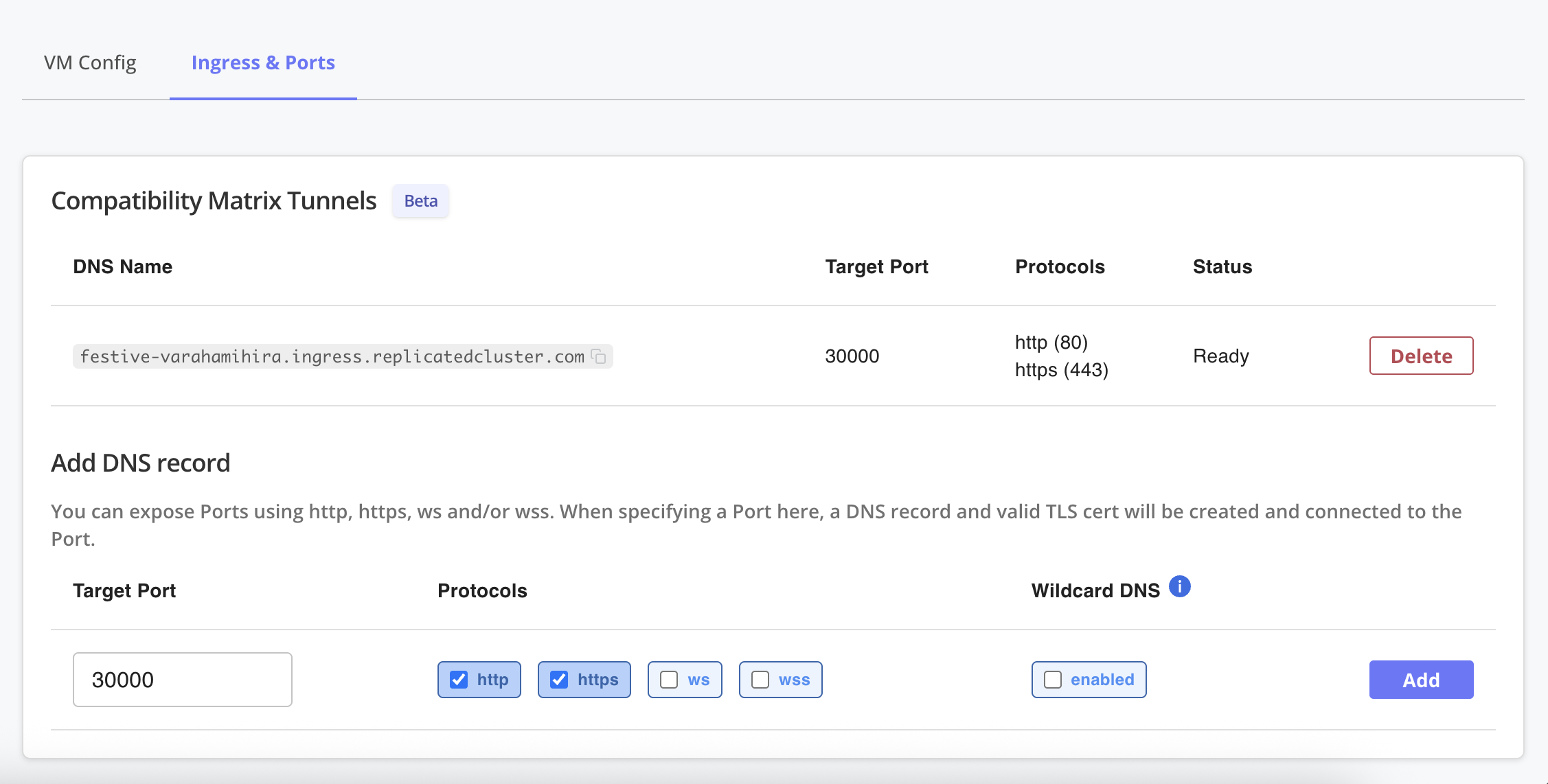
Under Ingress & Ports, enter the port number, select the protocols, and click Add.
View a larger version of this image
A DNS record and valid TLS certificate are created and connected to the specified port.
Use wildcard DNS (VM-based clusters only)
By default, each exposed port is assigned a unique hostname like boring-wozniak.ingress.replicatedcluster.com. If you need multiple subdomains to share a common base domain, use the --wildcard flag to create a wildcard DNS entry:
replicated cluster port expose CLUSTER_ID --port PORT --protocol https --wildcard
Wildcard DNS takes additional time to provision because Replicated must create a dedicated DNS record and TLS certificate.
When you use wildcard DNS, any matching subdomains will resolve to the same node IP address. This means that, if you deploy a Kubernetes ingress controller as a NodePort service, the ingress controller can receive traffic and route requests based on the subdomain. For example, with a hostname like *.boring-wozniak.ingress.replicatedcluster.com, subdomains such as app.boring-wozniak.ingress.replicatedcluster.com or api.boring-wozniak.ingress.replicatedcluster.com that correspond to dependent services will resolve to the same node IP address that exposes the ingress controller.
Remove exposed ports
Exposed ports are automatically deleted when the cluster or VM terminates. You can remove one protocol, or all. Removing all protocols also removes the DNS record and TLS certificate.
To remove a port (and the associated DNS records and TLS certificates) before an environment terminates:
# For clusters
replicated cluster port rm CLUSTER_ID_OR_NAME --id PORT_ID

# For VMs
replicated vm port rm VM_ID_OR_NAME --id PORT_ID
Create an external load balancer (cloud-based cluster distributions only)
For cloud distributions (EKS, GKE, AKS, OKE), you can expose your application to the public internet using a Kubernetes LoadBalancer service. When you create a LoadBalancer service, the cloud provider automatically creates a load balancer with a public IP address that routes traffic to your application.
apiVersion: v1
kind: Service
metadata:
  name: my-service
spec:
  type: LoadBalancer
  ports:
    - port: 80
      targetPort: 8080
  selector:
    app: my-app
Query the service to get the external IP:
kubectl get service my-service
AKS-specific configuration for routing loadbalancer traffic
AKS clusters require additional annotations for LoadBalancer traffic to route correctly:
apiVersion: v1
kind: Service
metadata:
  name: my-service
  annotations:
    service.beta.kubernetes.io/azure-load-balancer-health-probe-request-path: /healthz
spec:
  type: LoadBalancer
  externalTrafficPolicy: Local
  ports:
    - port: 80
      targetPort: 8080
  selector:
    app: my-app
externalTrafficPolicy: Localpreserves the client source IPservice.beta.kubernetes.io/azure-load-balancer-health-probe-request-pathmust point to an endpoint that returns HTTP 200 when your service is ready
For more information, see Use a public standard load balancer in Azure Kubernetes Service (AKS) in the Azure documentation.