Create event notification subscriptions
This topic describes how to create event notification subscriptions in the Replicated Vendor Portal. For more information about the Event Notifications feature, see About event notifications.
Create event notifications
Vendor Portal
To create an event notification subscription from the Vendor Portal:
-
In the Vendor Portal, go to Notifications and click Create notification.
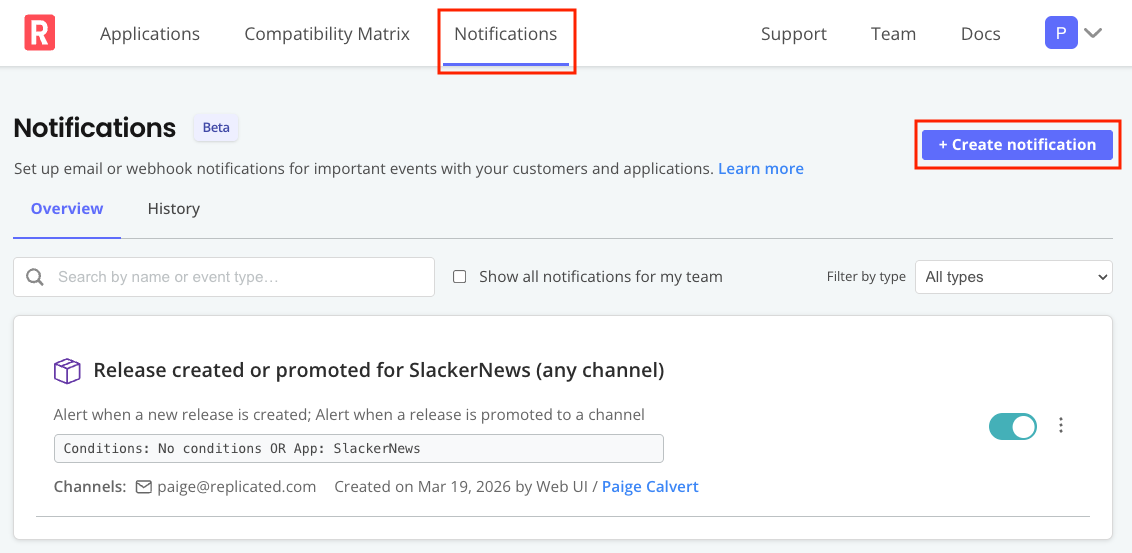
View a larger version of this image
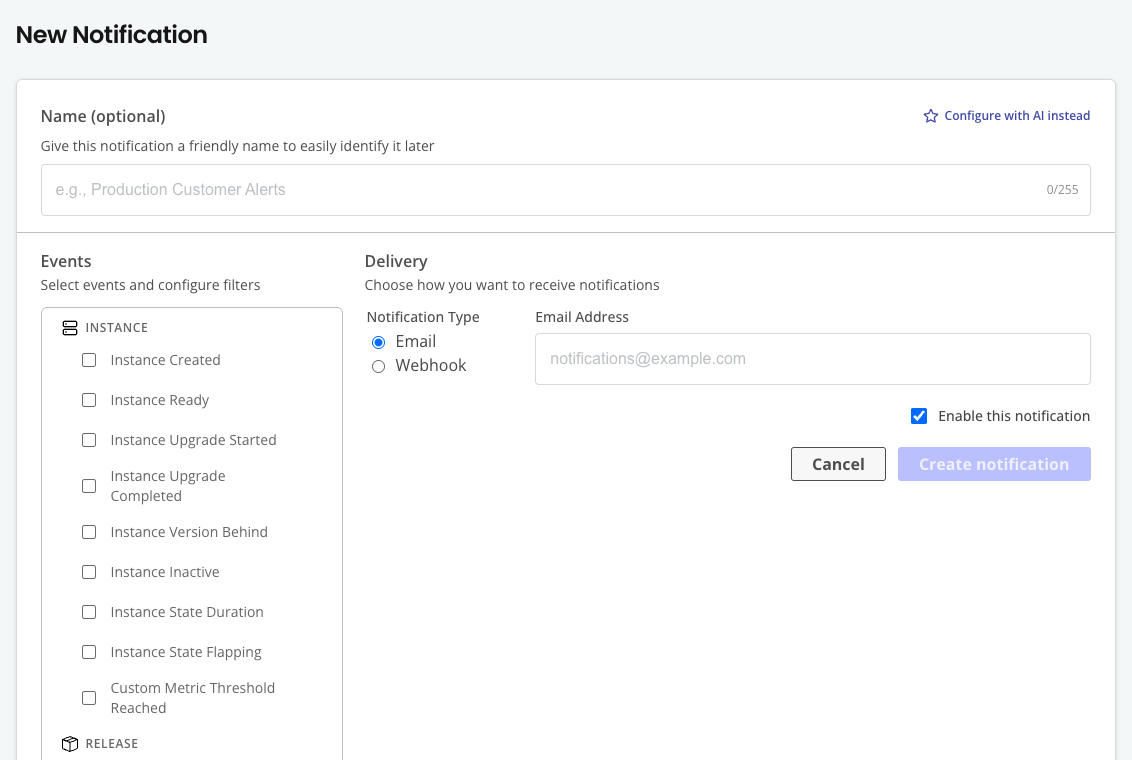
The New Notification page opens:
-
(Optional) Enter a custom name for the subscription. Custom names help you identify subscriptions when you have multiple subscriptions for the same event type. The name is also included in email subjects and webhook payloads.
Subscription names can contain up to 255 ASCII characters (letters, numbers, and basic punctuation).
-
Select one or more event types to include in the subscription. For the full list of available event types, see Event types and filters.
noteAlternatively, click Configure with AI instead. With the AI-assisted notification builder, you can describe in natural language the events that you want to be notified about. For example, "Notify me when trial customers upload support bundles" or "Alert me when instances fall more than 3 versions behind on the Stable channel". The AI builder has context of pre-defined event types and filters, but cannot create new event types or filters.
-
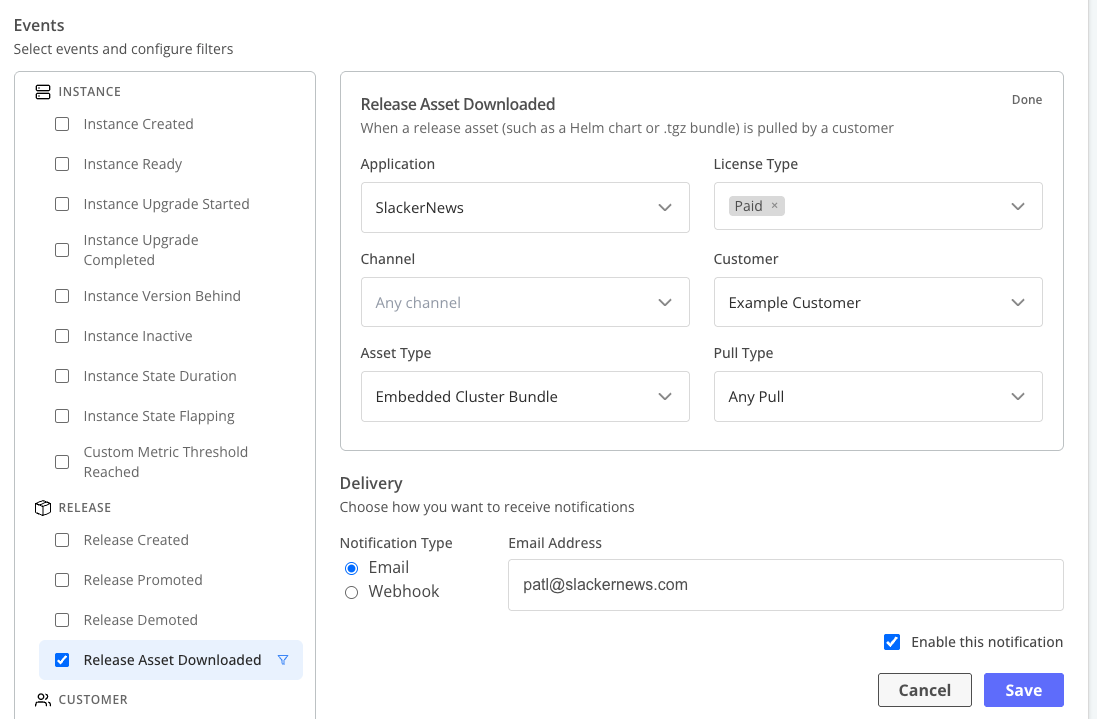
(Optional) For each of the events that you selected, click the filter icon to configure event filters. Click Done to save the filters.
For more information about how the Vendor Portal uses filters to trigger notifications, see Events and filters in About event notifications.
-
Do one of the following, depending on your notification delivery method:
-
For email delivery:
-
Enter an email address.
-
Click Send test email to send a test email to the configured email address and verify delivery.
Test emails use representative sample values (such as "Acme Corp" for customer names) rather than real data from your account.
-
-
For webhook delivery:
-
Enter a webhook URL. The endpoint must meet the following requirements:
- Must be able to receive HTTP POST requests
- Must be publicly accessible (or use a secure tunnel for testing)
- Must respond with a 2xx status code (200-299) for successful delivery
- Response time must be less than five seconds
-
(Recommended) Enter a signing secret for Hash-based Message Authentication Code (HMAC) signature verification. For more information, see Verify webhook signatures in Configure and test webhooks.
-
(Optional) Expand Advanced configuration to add custom HTTP headers for authenticating with your endpoint (for example,
Authorization: Bearer token). For more information, see About adding custom HTTP headers in Configure and test webhooks.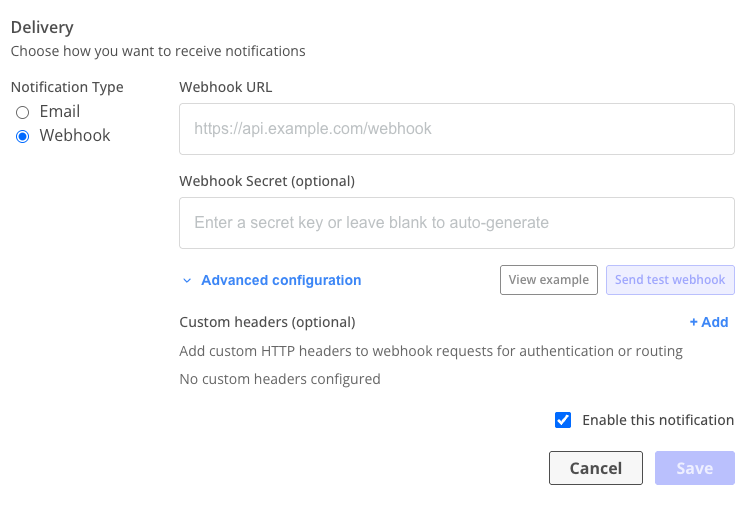
-
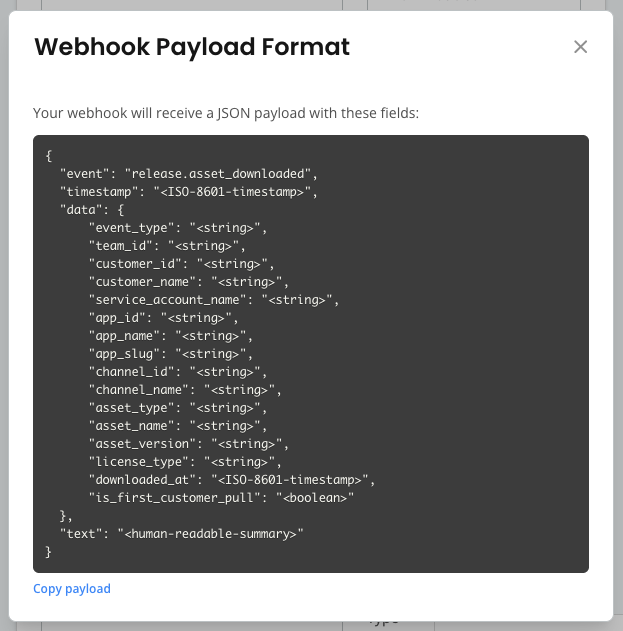
Click View example to open the webhook payload preview modal and see the exact JSON payload structure your endpoint receives for the selected event types. Click Copy payload to copy the format to your clipboard.
-
Click Send test webhook to send a sample payload to your endpoint and verify connectivity.
The test sends an HTTP POST request to your endpoint with a sample payload that matches the structure of a real event. Test webhook payloads include a
"test": truefield to distinguish them from real event notifications. Thedataobject contains representative sample values (such as "Acme Corp" for customer names) rather than real data from your account.The test result displays the HTTP status code and response time, or an error message with troubleshooting guidance. If you configured a signing secret, the test request is signed with HMAC-SHA256 so you can also verify your signature validation logic.
-
(Optional) In the Failure alert contact field, enter the email address to notify when webhook delivery permanently fails.
Type a team member's name or email to search for suggestions. You can also enter any external email address, such as an on-call routing address for PagerDuty or OpsGenie.
Without a failure alert contact, Replicated notifies the subscription creator and all team admins by default.
-
-
-
Click Create Notification.
-
For email subscriptions, if you used an email address other than your Vendor Portal user account email, follow the instructions in the verification email to validate the email address.
Replicated CLI
To create an event notification subscription with the Replicated CLI:
-
Create a JSON file to define the subscription details in the following format:
{"name": "Release promoted to Stable","isEnabled": true,"emailAddress": "pm-team@yourcompany.com","webhookUrl": "https://yourcompany.com/webhook","webhookSecret": "whsec_BhHPJ2iLSdFHZKkaJu5SM4EWJFX+0jcP","customHeaders": [{ "name": "X-My-Header", "value": "example-value" }],"eventConfigs": [{"eventType": "release.promoted","filters": {"appId": "3Bo1TkaBBNrd0WlZlk4FO4MNxdj","channelId": ["3Bo1TmYAwbY65U9QHkLrrEEFARy"]}}]}noteYou can run
replicated notification subscription getfor an existing notification subscription to see an example of the JSON format.The following table describes each of the required and optional fields:
Field Required Description nameNo Display name for the subscription isEnabledYes Whether the subscription is active emailAddressConditional Destination email address. Required if webhookUrlis not setwebhookUrlConditional Destination webhook URL. Required if emailAddressis not setwebhookSecretNo Secret used to sign webhook payloads using HMAC customHeadersNo Array of {"name": "...", "value": "..."}objects added as HTTP headers on each webhook requesteventConfigsYes One or more event type configurations. Each entry has an eventTypekey and afiltersobjecteventConfigs[].eventTypeYes The event type key. For the complete list of available event types, see Event types and filters. eventConfigs[].filtersYes Filter conditions for the event. Use {}to receive all events of that type -
Run the following command:
replicated notification subscription create --file JSON_FILEWhere
JSON_FILEis the path to the JSON file that you created.
Event notification examples
The following are example event notifications based on common use cases.
Customer success manager: Support bundle analyzed
As a Customer Success Manager, I want to be notified when a support bundle from one of my key customers is analyzed, so I can review the results and follow up.
- Event Type: Support Bundle Analyzed
- Configuration:
- Filter - Application: Select your production application
- Filter - Customer: Select your key enterprise customer (for example, "Acme Corp", "GlobalTech Inc")
- License Field Condition:
tierequals "Enterprise" ANDseatsgreater than or equal to 100
- Delivery Method: Email to your work email (or team email alias)
Support Bundle Analyzed provides more context than Support Bundle Uploaded, including bundle metadata and bundle name. It also supports instance tag filtering, which lets you scope alerts to specific environments (for example, production only). Use Support Bundle Uploaded only if you need the earliest possible notification that a bundle arrived, without filtering by instance.
Sales manager: Trial license expiration
As a Sales Manager, I want to be notified when a trial customer has an impending trial license expiration.
- Event Type: Customer License Expiring
- Configuration:
- Filter - Application: Select your production application
- Filter - License Type: "Trial"
- Delivery Method: Email to your work email (or team email alias)
Product manager: Release promoted
As a Product Manager, I want to be notified when a new release version is made available to customers on the Stable channel so that I can engage key customers in adoption follow-up conversations.
- Event Type: Release Promoted
- Configuration:
- Filter - Application: Select your application
- Filter - Channel: Select "Stable"
- Delivery Method: Email to
pm-team@company.comor webhook to #pm-team channel in Slack
Release engineer: Release build failed
As a Release Engineer, I want alerts when an air gap bundle build fails on a testing or production channel. This helps me investigate before customers install or upgrade.
- Event Type: Release Build Failed
- Configuration:
- Filter - Application: Select your application
- Filter - Channel: Select "Unstable", "Beta", or "Stable", depending on the channels you monitor
- Delivery Method: Webhook to your team chat or email to your release engineering alias
Operations manager: Registry egress threshold
As an Operations Manager, I want alerts when monthly registry egress reaches an expected threshold. This helps me investigate usage changes before the billing period ends.
- Event Type: Egress Threshold Reached
- Configuration:
- Filter - Threshold (TiB): Enter the monthly egress threshold, for example
5
- Filter - Threshold (TiB): Enter the monthly egress threshold, for example
- Delivery Method: Email to your operations alias or webhook to your monitoring system
Development leader: Paid customer downloads release assets
As a Development Leader, I want to be notified when a paid customer pulls release assets to initiate a paid install.
- Event Type: Release Asset Downloaded
- Configuration:
- Filter - Application: Select your application
- Filter - Channel: Select "Stable"
- Filter - License Type: "Paid"
- Filter - Asset Type: Any, or narrow further
- Delivery Method: Email to your work email (or team email alias)
Revenue operations: First software pull for revenue recognition
As a Revenue Operations Manager, I want to receive a notification the first time a paid customer pulls software so that I can record the exact revenue recognition timestamp.
- Event Type: Release Asset Downloaded
- Configuration:
- Filter - Application: Select your application
- Filter - License Type: "Paid"
- Filter - Pull Type: "First Pull for Selected License Type"
- Delivery Method: Webhook to your customer relationship management system
Support engineer: Unhealthy instance alert
As a Support Engineer, you want to be notified when a customer instance has been in an unhealthy state for an extended period so that you can proactively reach out.
- Event Type: Instance State Duration
- Configuration:
- Filter - State: Select "Unavailable", "Missing", and "Degraded"
- Filter - Duration: "1 hour"
- Filter - Application: Select your production application
- Filter - License Type: "Paid"
- Delivery Method: Webhook to #support-escalations channel in Slack
Operations engineer: Custom metric alert
As an Operations Engineer, you want to receive an alert when a custom metric from a customer instance exceeds a threshold.
- Event Type: Custom Metric Threshold Reached
- Configuration:
- Metric Name:
error_count - Operator: Greater Than
- Threshold Value:
100 - Frequency: When Changed
- Filter - Application: Select your application
- Metric Name:
- Delivery Method: Webhook to your monitoring system or email to
ops-team@example.com
Operations lead: Instance instability
As an Operations Lead, you want to be notified when a customer instance is rapidly changing states, which may indicate an underlying infrastructure or configuration issue.
- Event Type: Instance State Flapping
- Configuration:
- Filter - Minimum State Changes: 5
- Filter - Time Window: 30 minutes
- Filter - Application: Select your application
- Delivery Method: Email to
ops-team@example.com